![Passendo_Secondary_Logo.png]](https://site.passendo.com/hs-fs/hubfs/Passendo_Secondary_Logo.png?height=40&name=Passendo_Secondary_Logo.png)
First Party Data is any data you have collected about your subscribers. It can live in a CRM, in your ESP, in an external database, or anywhere else. With Emperor, you can turn that data into targeting, so the same newsletter slot can show different ads to different readers based on who they are.
There are three ways to bring first party data into Passendo. They differ in how the data reaches us, how often it needs refreshing, and how flexibly you can reuse it. Most publishers use a combination.
The three methods at a glance
| Method 1 — Key values in the tag | Method 2 — Targeting list on a line item | Method 3 — Attribute list by user ID | |
|---|---|---|---|
| What it is | Subscriber attributes travel inside the ad tag URL at send time. | A list of recipients is uploaded and attached to one line item. | A file of recipient IDs plus their attributes is stored as a profile in Passendo. |
| How the data gets in | The ESP injects KEY=value pairs into the tag for each recipient. |
The ESP exports a list of users or IP addresses, the file is uploaded under Targeting lists. | The ESP exports IDs and attributes in separate columns, uploaded via API or the UI. |
| Where it is matched | Against the line item's key value targeting, at ad call time. | The reader's identifier is checked against the attached list, at ad call time. | Against any line item's targeting, drawing on the stored profile, at ad call time. |
| Best for | The most real-time approach. Attributes that change per send. | Campaign-specific audiences (one list, one line item). Lists are manually added to line items. | The most flexible approach. Reusing the same attributes across many line items. |
| Refresh | Always current — data is sent with every ad call. | Re-upload when the audience changes. Must change existing line items one by one. | There is only one list, but it must be updated frequently to stay accurate. |
A note on identifiers. Throughout this article we say "email" or "ID" for the recipient identifier, because for most setups the first Passendo variable in the tag is the subscriber's email, usually hashed. Lists and uploads must use the same identifier that your tags use.
Method 1 — Dynamic key values via the tag (ESP)
This is the most real-time approach. The ESP pulls each contact's attributes and writes them into the Passendo ad tag URL as KEY=value parameters at the moment the newsletter is sent. No files, no uploads, no batch jobs — the data travels with every ad call. There is one ad tag in the template; what changes per recipient is the values rendered into it. For example, an ESP variable for the subscriber's country renders into the impression URL like this:.../imp/2/41208/jane@example.com/12345?COUNTRY=UnitedKingdom&ENVIRONMENT=PRODUCTION
A reader in another segment might instead render:
?COUNTRY=Unknown&ENVIRONMENT=PRODUCTION
You then create one line item targeted to COUNTRY=UnitedKingdom, and optionally another for everyone else (or a line item with no key value targeting at all, so the rest still see an ad).
The matching rule: it must be exact
A line item is only eligible if its targeting matches the tag output 1:1. Both the key (the parameter) and the value (the variable) have to line up exactly.
- If the tag outputs
country=USAbut the line item targetslocation=USA, the ad will not show — the key does not match. - If the line item targets
country=US, it will not show either — the value does not match. - If a line item targets two or more values joined with AND, all of them must be present in the URL for it to show.
Operators
Whether you set targeting in the Emperor key value boxes (Key / Operator / Value) or write it as text in the advanced editor, the following operators are available:
| Operator | Meaning | Example |
|---|---|---|
= |
is (equals) | country=Italy |
!= |
is not (not equal) | country!=Denmark |
< |
is less than | age<30 |
> |
is greater than | age>20 |
<= |
is less than or equal to | age<=35 |
>= |
is greater than or equal to | age>=18 |
[ - ] |
a range of values (text/advanced editor only) | age=[18-35] |
, or OR |
match if ANY condition is met | city=Copenhagen,NewYork |
AND |
match only if ALL conditions are met | age=20 AND gender=female |
( ) |
group conditions for priority | (age=20 AND gender=m) OR (age>20 AND age<30 AND gender=f) |
When you write targeting as text (the Emperor advanced editor, or the Key Value Booking String field on the Legacy platform), keep these syntax rules in mind:
- No spaces between key, operator and value:
age=20,age>20,country!=denmark. - A space on each side of the logical operators:
age=20 AND gender=female. - Commas separate multiple values for the same key:
city=x,y,z. - When you use OR, repeat the key for every value:
city=Copenhagen OR city=NewYork. - Write AND and OR in capitals.
- Do not use quotes: write
gender=female, notgender="female".
Examples
1. Targeting Gender=F OR City=Washington against the tag output ?Gender=F&City=Copenhagen → shown, because Gender=F matches even though the city does not.
2. Targeting age=[18-25] → a reader sending ?Age=18 is shown; a reader sending ?Age=30 is not.
3. Targeting (age=20 AND gender=m) OR (age>20 AND age<30 AND gender=f) against ?age=22&gender=f → shown, because the second group is fully satisfied.
Setting key value targeting in Emperor
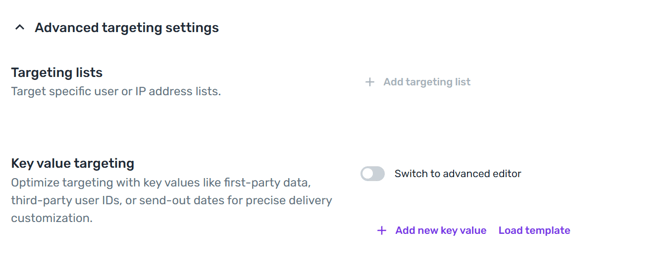
On a line item, open Advanced targeting settings. Under Key value targeting you can set it up in three ways:
- Add new key value — type a Key, pick an Operator from the dropdown, and type a Value. Add more key values, and combine them with condition groups for narrow targeting (for example, men aged 18–30 OR women aged 25–35: each key value inside a group joined with AND, the two groups joined with OR).
- Load template — insert a saved Key Value Template with one click (see the next section). Loading a template overrides any key values you added manually.
- Switch to advanced editor — write the targeting as text. The editor accepts the classic
key=valuestyle (age=25, gender=male, interests=travel,sports), JSON, or a URL query string style (age=25&gender=male&interests=travel,sports). This is the fastest way to paste a large set of values copied from another tool.
Configuring Key Value Templates
Repeating the same key values from one line item to the next is slow and easy to get wrong. Key Value Templates let you save a set of key values once and drop it into any line item with a click. The section sits under the Demand menu on the left.

Click Create new template, then give it a clear, team-readable name such as Central London Postcodes or Dog owners in Berlin. A template can hold a single value type (for example a zipcode), or combine several values and condition groups into a segment you target often.

For each entry, set a Key, an Operator and a Value. Use Add new key value to list more values (joined with AND or OR), and Add new condition group to build more complex combinations. In our case, we will use multiple keys named zipcode and an operator “= equal to”, while listing all central London zipcodes as values:

Another option to make the template more sophisticated for even more precise targeting is to combine multiple values or condition groups. Let’s say we want to target dog owners in the city of Berlin. We would need to use two values – one is the city of Berlin, and the other is the pet which will be set to dog. Once we set the city value, click the +Add new value button and choose one of the operators – AND or OR. In our case, we need the operator AND. The key value template is set to target only those audience members who both live in Berlin and have a pet dog.

Now, let’s say that the same advertiser – Germany pet shop – has two shops, one in Berlin and one in Munich. They wish to target both. We can make a single Key Value Template by leveraging conditioning groups. The final template will ensure that the ad will be delivered only to dog owners in Berlin or Munich.

However, there is one more way to make this same key value template – by selecting the dog as a value that must be checked, and the city as a key that varies between cities. In that case, we also have two conditioning groups, but we use the operator AND between them.

All templates are managed from the Key Value Templates dashboard. Use the search bar to find one by name, and the Actions column to Edit, Copy, or Delete a template. Copying is the quick way to build a new complex template from an existing one. Deleting is permanent and cannot be undone.

How the server remembers a key across sendouts
The ad server keeps the last value it saw for each key, per reader. This is deliberate and usually invisible, but it matters when a tag is built incorrectly. If a given reader (identified by their email) previously opened a sendout where the tag carried, say, issue=8118, the server remembers that value for that reader for a while. If a later sendout's tag is missing that key — most often because a tag is malformed, for example a forgotten & between two parameters — the server falls back to the last value it remembers for that reader. So it can serve an ad targeted to issue=8118 to someone whose current sendout never actually carried that key. This never happens when the key is always present in the tag, because the server then always reads the current value and serves accordingly. The practical takeaway:
Always include every targeting key in every sendout's tag, and check the separators. Make sure there is an & between each parameter (for example between &volume=[variable] and issue=[variable]). A missing & drops the key from the URL and lets the remembered value take over.
Targeting subscribers with multi-value attributes
Emperor now supports key value targeting from multi-value attributes. This lets you reach subscribers whose attribute holds several values at once, without restructuring the data in your ESP.
When a subscriber attribute contains a comma-separated list of values, Emperor matches the line item if any value in that list satisfies the targeting condition. The ad therefore reaches all relevant subscribers, not only those whose attribute holds a single value.
- Subscriber attributes may contain multiple values in one field (comma-separated).
- The line item targeting uses a single value.
- The line item matches if at least one value in the list equals the target.
Subscriber data from the ESP |
Line item targets interest=football |
|
|---|---|---|
| John | interest=football,baseball,reading |
Ad shown |
| Jack | interest=football |
Ad shown |
Previously, only Jack would have matched, because the comparison was an exact string match and football,baseball,reading did not equal football. Now both John and Jack are reached.
Backward compatible. The update changes nothing for single-value attributes. Existing exact-match setups continue to behave exactly as before, with no regression.
Next page: Method 2 and Method 3